In most cases you retrieve data and information by clicking on links to the information you are looking for. However, you can also search for information in most windows where you capture data.
There are three different ways to find data in SMARTEDGE.
General search for data,
Finding an entry to open it in the main window, or
Perform a search for data to use within the window.
General Search
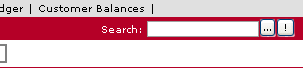
SMARTEDGE offer a powerful search window for most of your data, where you specify directly what you are searching for. Click the button situated just below your module selection box in the top right-hand corner to open the Search window.
Finding an Entry to Open
Most windows were you capture data, you can look for an entry to open it. The find input field is in the top right-hand corner of the main window.
To look for data, enter the data to look for and then click the button
When looking for data the search only finds data that starts with the string you entered. You can use an asterisk (*) at the start of the search string to look for data containing your search string. This is a more time consuming search process.
To Open a particular entry for which you know the id or number, enter the number and click the
Click here to see which id. needs to be used when opening a record.
Searching For Data to Use Within a Window
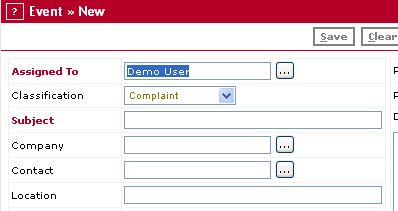
In some windows when you capture data you link this data to other objects. For instance for activities you may want to link the activity to a customer and a contact.
When you do this link, you can use the button to search for a record.
Except for customers/suppliers/items on sales orders/purchase orders, there is no strict need to search for an entry if the data you input uniquely identifies a record. The application will find the record when it saves your entry. Therefore, it is recommended that you do not search when you are confident that the data you have inputed is unique. It saves time.
In case you enter an input that is not unique, you will get a message that the record cannot be uniquely identified.
Click here to see what is displayed for a blank search string, or to see what id. needs to be used when opening a record.
When searching for data only data that starts with the string you entered will be found. To search for data containing your search string enter an asterisk (*) at the start of the search string . If there are many records this will be a more time consuming search process.
For example when searching for customer Brown & Son entering son will find no match, but entering *son or brown will find the record. Searches are NOT case sensitive.
Using a Search String
Data Object
Fields searched
Activities
Subject
Campaigns
Campaign Code
Campaign Name
Contacts
Contact Name
Contracts
Contract Code
Contract Name
Customer Name
Customers
Account Number
Customer Name
Customer Party Code
Documents
Company Name
Document ID
Document Owner
Document Text
Document Type Name
File Alias
File Name
Financial Transactions
Transaction Number
Transaction Text
Reference
Jobs
Job Name
Notes
Note Text
Only Notes for your user are searched.
Items
Item Code
Bar Code
PLU
Alternative Code
Item Name
Purchase Orders
Order Number
Supplier Name
Sales Orders
Order Number
Invoice Number
Customer Name
Sales Reps/Buyers
Stakeholder Code
Stakeholder Name
Suppliers
Account Number
Supplier Name
Supplier Party Code
Users
User Name
Using a Blank Search String or Opening a Record
Data Object
Blank Search
To Open a Record
Activities
All Open Activities you own
N/A
Campaigns (CRM edition only)
All active campaigns
Campaign Code
Contacts
All Contacts you have access rights to
Contact Id
Contracts
All active contracts
Contract number
Customers
All Customers you have access rights to
Use with care as it can return a huge result set
Customer Id or Account Number
Documents
All Open Documents
File Name or Document Id.
Financial Transactions
All transactions for current branch
Use with care as it can return a huge result set
Transaction Number
Jobs
All Jobs
N/A
Notes
All your notes
N/A
Items
All items applicable in the context you are searching.
Use with care as it can return a huge result set
Item Code
Item Classes
All Product Classes
N/A
Purchase Orders
All open (undelivered) purchase orders belonging to current unit.
Order Number
Sales Orders
All open (undelivered) sales orders belonging to current unit.