Capture Supplier Invoices and Supplier Credit Notes
Please note that this is a joint help window for capturing supplier invoices and supplier credit notes. The methodology of all these operations are the same and are explained in this help document. Where there are specific instructions for a particular operation it will be explained and noted that it only applies for that particular operation.
Please note that throughout the help document the term supplier invoice is used for convenience. It applies for credit notes as well.
How this window works
In this window you allocate expenses from a supplier invoice. It is possible to capture the expenses either by specifying an item (product or service) or by only selecting a general ledger account and providing a reference for the expense.
Using items
It is important to note that if stock items are used, stock movements will be captured unless a purchase order has been linked to the supplier invoice. If a purchase order is linked to the supplier invoice, stock movements will not be captured because they will/would have been captured when the purchase order is received and costed.
For stock items the account allocation should normally be to an inventory account, or to an accrual account if a purchase order has already been captured for the stock items. If the supplier invoice is based on a purchase order the account allocation will be suggested automatically based on the accrual method used for your company. Click here for more information about how Inventory and Cost of Goods Sold is captured.
A benefit of using items is that purchase statistics will be updated for the item. However, for normal operating expenses this is usually not relevant and in such cases items is not needed.
Furthermore, if purchase orders are not used the supplier invoice can be used to directly update stock movements. This allows you to easily add stock on stock items without needing to issue a purchase order first. Companies not requiring costing of stock items can simply capture the purchase with stock items directly in this window and stock will then be added for the included items.
Capturing a Supplier Invoice From a Purchase Order
If a purchase order has been created in SMARTEDGE, the supplier invoice must be captured based on the purchase order. This is particularily important if stock items are included on the supplier invoice. If stock items are included, and the supplier invoice is not referenced to an already captured purchase order, stock movements will be duplicated.
Please note that it is not possible to change the Purchase Order link when editing a supplier invoice. If it is linked to the wrong purchase order, the supplier invoice should be voided and re-captured.
How to Capture a Supplier Invoice From a Purchase Order
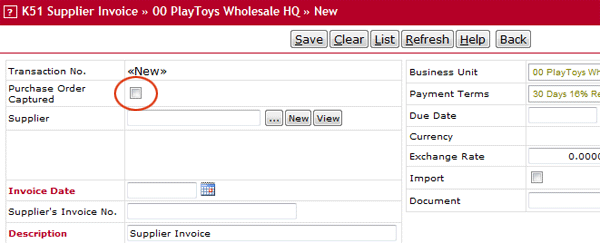
To capture a supplier invoice from a purchase order, tick the checkbox Purchase Order Captured.
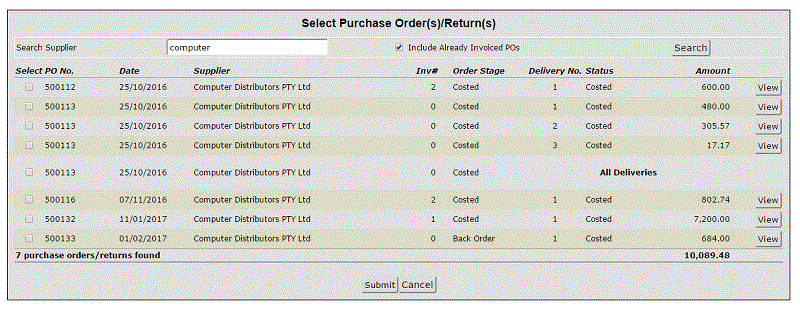
A list of open purchase orders will display. Select the applicable purchase order and click the select button for it. The supplier invoice will display loaded with data from the purchase order. Normally no changes should be made to this unless there are discrepancies between the invoice and the purchase order.
Select the applicable purchase order and click the select button for it. Multiple purchase orders and/or delivery schedules may be selected. If multiple orders are selected please make sure that they are all from the same supplier. If a purchase order has multiple deliveries and the supplier invoice is for the complete purchase order, select the entry marked All Deliveries.
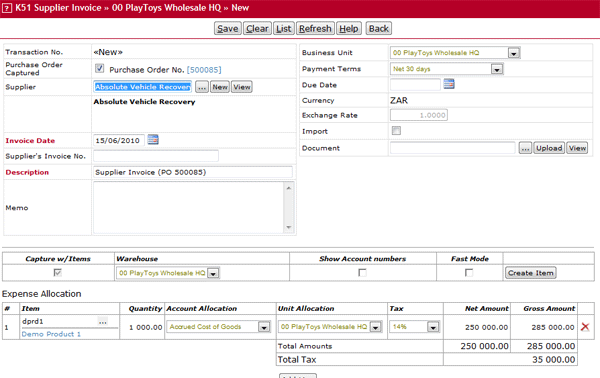
The supplier invoice will display loaded with data from the purchase order.
Capturing a Supplier Invoice Directly
How To Fill In The Fields
Field
Do
Purchase Order Captured
If a purchase order is not captured, leave this field unticked. If a purchase order has been captured tick the checkbox. See above for more details.
Supplier
Enter a search string for the supplier, click the search button (...), and select the supplier from the list of matching suppliers. Click here for more details on how to find a supplier.
If it is a new supplier, click the New button.
A supplier is not required, however it is recommended to use a supplier for all supplier invoices. If a supplier is not entered, the expense will be captured directly against the payment account which you will be prompted to select after you have clicked the save button.
Click here for more details about the differences between a supplier invoice and cash expense (no supplier specified).
Invoice Date
Enter the date the purchase was made (i,e. the supplier's invoice date). This field is labeled Credit Note Date if it is a supplier credit note.
Supplier's Invoice No.
If applicable, enter the supplier's invoice number for the purchase. This will be saved as a reference for the purchase. Please note that you are not allowed to enter the same supplier's invoice number on different supplier invoices from the same supplier. The exception to this is if the field is left blank. This limitation is not enforced for credit notes.
This field is labeled Supplier's Credit Note No if it is a supplier credit note.
Enter a internal memo/description for the purchase.
Business Unit
Select the business unit for the supplier invoice. The supplier transaction will be captured on the selected unit, as well as the payment/bank transaction if it is a cash expense.
Project
Select the project the expense should be posted on.
Please note that projects are only available in certain editions and if the setting Project Accounting is enabled in Company Preferences.
Payment Terms
Select the payment term for the supplier invoice.
When a payment term is selected, the due date is calculated from the payment term.
If you want to set a specific due date, enter the date in the Due Date field. This will override the due date calculation from the payment terms.
This field is not displayed for credit notes.
Due Date
If you do not want due date to be calculated, enter the due date for the invoice in this field.
This field is not displayed for credit notes.
Currency
The supplier's currency is displayed. The selection box is always disabled since you can only receive invoices from the same supplier in one currency.
The currency is determined by the currency setting on the supplier
This field is not displayed for Tax (VAT) on import invoices or credits because such invoices must be in local currency.
Exhange Rate
This is the currency rate to be used for the invoice. The current rate for the currency is suggested.
This rate can be changed when the currency is not the local currency
This field is not displayed for Tax (VAT) on import invoices or credits because such invoices must be in local currency.
Import
Tick the checkbox if the purchase is an import. When the checkbox is ticked, expenses will default to 0-rated, because taxes (VAT) will be captured on a separate VAT invoice from the import handling agent.
This field is not displayed for Tax (VAT) on import invoices or credits because such invoices are always local.
Document
If you are linking this transaction to a document, enter a search string for the document, click the search button, and select the document from the list. Click here for more details on how to search.
Click the Search button with a blank string if you want to list all financial documents currently open.
To view the document, click the [View] link after you have selected the document from the search list.
Entering Expense Allocations
A purchase can contain different types of expenses that may need to be recorded on different accounts. Each type of expense is captured on its individual expense line
Filling Out General Options For Expense Lines
Situated above the individual lines there are some options available.
Field
Do
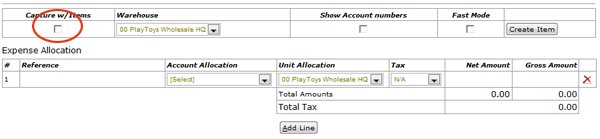
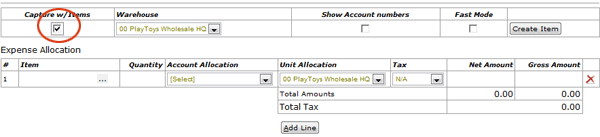
Capture With Items
Tick this checkbox if you want to capture items (products or services) for each line. This feature can be used for adding stock for stock items and update purchase statistics for items. Please read carefully the instructions mentioned above on using items
This checkbox is always enabled if the supplier invoice is based on a purchase order.
Warehouse
Select the stock warehouse/depot. Only applicable for stock items, or if a cost of sales or inventory account allocation is used for one or more of the expense lines. Warehouse is otherwise ignored.
The warehouse is automatically suggested to be the standard warehouse for the selected purchase order, business unit or supplier.
Show Account Numbers
Indicate whether account numbers should be listed in the account allocation dropdown listbox. If enabled, accounts will be ordered by account group and account number. Otherwise the list will be ordered by account group and account name. The setting is remembered for the next supplier invoice.
Fast Mode
Tick this checkbox if you want a new line to be automatically added after you have entered amounts on the last line. In other words, if Fast Mode is enabled, a new line will appear and cursor focus moved to the next line after net amount or gross amount for the current line has been entered.
Recommended when many item lines are added because you do not need to click the add line button.
Create Item
Click this button to add a new item.
How To Enter an Expense Line
Using Foreign Currency
When you are using foreign currency, you should always enter the amounts in the applicable currency. The system will calculate the amounts in local currency based on the entered exchange rate.
Not Using Items
Field
Do
Reference
Enter a reference for the particular expense. This field is optional and can be left blank.
Account Allocation
Select which account the expense should be allocated to.
Unit Allocation
Select the business unit the expense should be allocated to. Note that the business unit you select must belong to the same self-contained unit (branch) as the business unit for the supplier invoice itself. Click here for more information about allocating to business units.
Tax
Select the Tax (VAT) code for the expense.
Click here for more details on how to use VAT. Both VAT Input Tax codes and VAT Output Tax codes are listed, however, in normal circumstance VAT Input Tax codes should be used for supplier invoices. The default tax code for the selected account is used.
Net Amount
Either the net amount without tax (VAT) can be entered or the gross amount including tax. Enter the amount in the applicable field. If net amount is entered, the gross amount is calculated based on the selected tax code and vice versa.
The amount should always be specified in the selected currency.
Gross Amount
If net amount is not entered, enter gross amount including tax. The net amount is calculated based on the selected tax code.
The amount should always be specified in the selected currency.
Using Items
Field
Do
Item
Enter the item code or item name for the product/service. You are not required to enter the full code or name of the product. Click theto find the item and display it. Select the item from the list of items matching your search. If a unique product was found it will be automatically selected, and the list will not display.
The account allocation will default to the standard account set on the item. If it is a stock item this will be the inventory account or the accruals account depending on whether a purchase order is references. For other items, the default purchases account is selected.
Quantity
Enter quantity purchased
Account Allocation
If the account selection needs to be changed, select which account the expense should be allocated to.
Unit Allocation
Select the business unit the expense should be allocated to. Note that the business unit you select must belong to the same self-contained unit (branch) as the business unit for the supplier invoice itself. Click here for more information about allocating to business units.
Tax
Select the Tax (VAT) code for the expense.
Click here for more details on how to use VAT. Both VAT Input Tax codes and VAT Output Tax codes are listed, however, in normal circumstance VAT Input Tax codes should be used for supplier invoices. The default tax code for the selected account is used.
Net Amount
Either the net amount without tax (VAT) can be entered or the gross amount including tax. Enter the amount in the applicable field. If net amount is entered, the gross amount is calculated based on the selected tax code and vice versa.
The cost price per unit will be calculated and set to net amount divided by quantity.
The amount should always be specified in the selected currency.
Gross Amount
If net amount is not entered, enter gross amount including tax. The net amount is calculated based on the selected tax code.
The amount should always be specified in the selected currency.
Total Amounts and Total VAT
Since both net amount and gross amount is displayed for each line, rounding of VAT may cause a discrepancy for total VAT. This is adjusted for in the totals section situated below the item lines.
In the illustration below the sum of gross amounts is 2 cents to high, because of VAT rounding on the line level. The correct total VAT should be 1 942.80, which is 14% VAT on the total NET amount. The Gross Invoice Amount is corrected for this discrepancy.
Behind the scene
The reason that such discrepancies sometimes occur is due to rounding when VAT is calculated. The following table illustrates this.
Line
Net Amount
Gross Amount
VAT Not Rounded
VAT Rounded
1
1852.18
2111.49
259.3052
259.31
2
2697.54
3075.20
377.6556
377.66
3
1852.18
2111.49
259.3052
259.31
4
2925.50
3335.07
409.57
409.57
5
1852.18
2111.49
259.3052
259.31
6
2697.54
3075.20
377.6556
377.66
Total
13877.12
15819.94
1942.7968
1942.82
Looking at the table, we find that total VAT should be 1942.80, which is the same as the total VAT when VAT is not rounded on line level. On the other hand, if VAT is rounded at line level the total VAT will come to 1942.82. Strictly speaking, the first method is the correct method, because VAT should be calculated from the total net amount of the invoice. However, some systems does not take this into consideration.
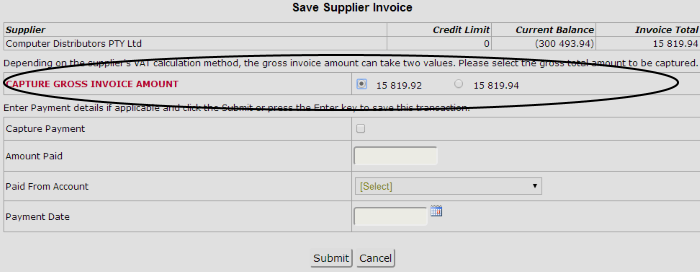
When such a situation arises, SMARTEDGE, can not determine which total gross amount to use. By default, SMARTEDGE, would choose the first method for calculating the gross amount, however, because your supplier's system may calculate using the second method, you will be prompted to select which gross total amount should be captured.
If this is the case, select which of the two amounts is the correct amount for the supplier invoice.
Specific fields for VAT on Import Invoices
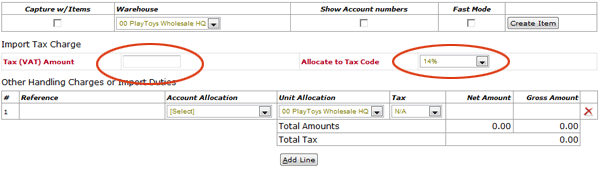
If a VAT on Import invoice or credit note is captured, fields specific for capturing the VAT amount is displayed. All VAT on Import invoices will contain a specific record for the VAT amount charged on goods imported. This is the amount that should be entered in the field Tax (VAT) Amount. Furthermore, the appropriate Tax code for the tax must be selected in the field Allocate to Tax Code. This field determines which tax code and how the tax will be allocated on the VAT Submission form.
When capturing VAT on Import invoices, the expense allocation lines are used for capturing Handling Charges and other expenses invoiced.
How To Delete an Expense Line
To delete an Expense Line, click the situated on the righ-hand side of the expense line.
How To Add a New Expense Line
Click the Add Line button to add another expense line.
Saving the Supplier Invoice
When all expenses have been entered, Click Save to save the purchase.
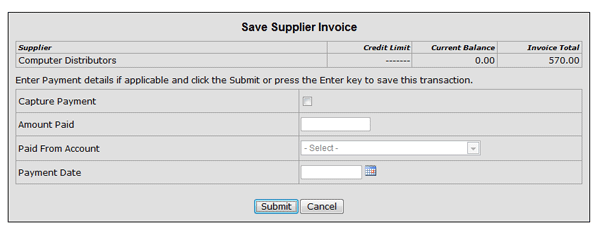
A new window will appear for you to selected whether a payment should be captured.
Field
Do
Capture Payment
Tick this checkbox if you want the payment for the expense to be captured.
Paid Amount
Enter the amount paid. The full amount of the supplier invoice will be suggested. If it is a foreign currency invoice, both local and foreign currency amounts must be entered
Paid From Account
Select the account used to pay for the purchase. Click here for more details.
Payment Date
Enter the date of the payment
When ready, click the Submit button to capture the supplier invoice, or click cancel to abort.
Confirm that the supplier invoice was entered successfully, and write the transaction number(s) on your physical receipt for later reference.
Archive your receipt in your binder for entered supplier invoices.



 situated on the righ-hand side of the expense line.